SharePoint Access Instruction
Important:
Prerequisites:
These instructions do not apply if you are already set up and have been granted guest access to the Chillibreeze tenant.
If you have already installed Microsoft Authenticator, please start from step 1 below.
Before you can add your account, ensure that you’ve downloaded and installed the Microsoft Authenticator app. If you haven’t done so yet, please follow the steps below.
To install Authenticator on your iOS device
Scan the QR code

or download and install Authenticator from the Apple app store.
Get the app
To install Authenticator on your Android device
Scan the QR code
or download and install Authenticator from the Google Play store.
Get the app
Step-by-Step Instructions:
1. Access the SharePoint Link
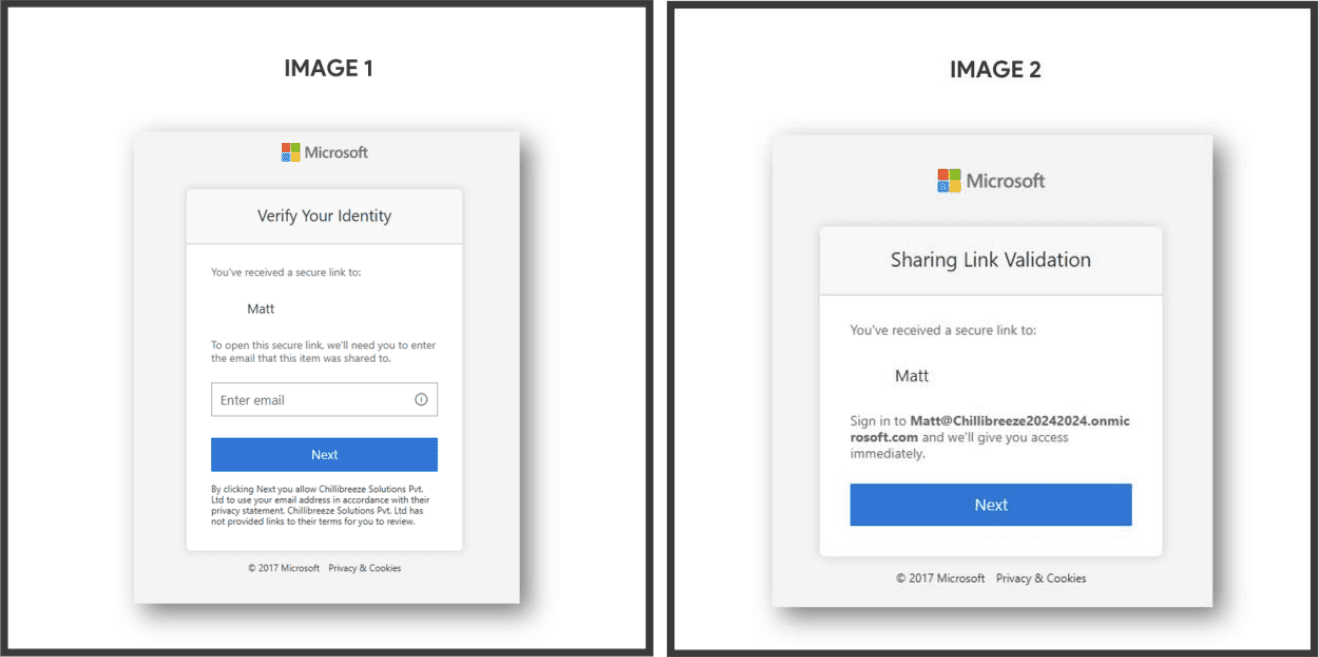
When you click on the SharePoint link we shared, you will be directed to a page that looks like one of the following (see Image 1 or Image 2).
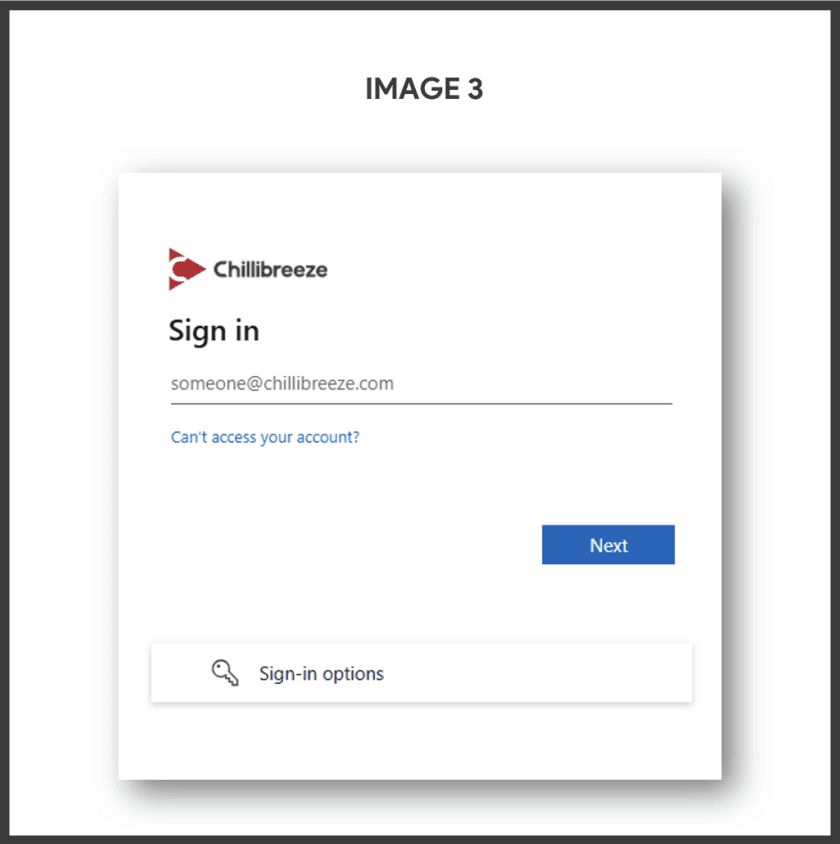
Sign-in
o Enter your email address or click Next.
o You will be prompted to enter your email address and password, as shown in Image 3.
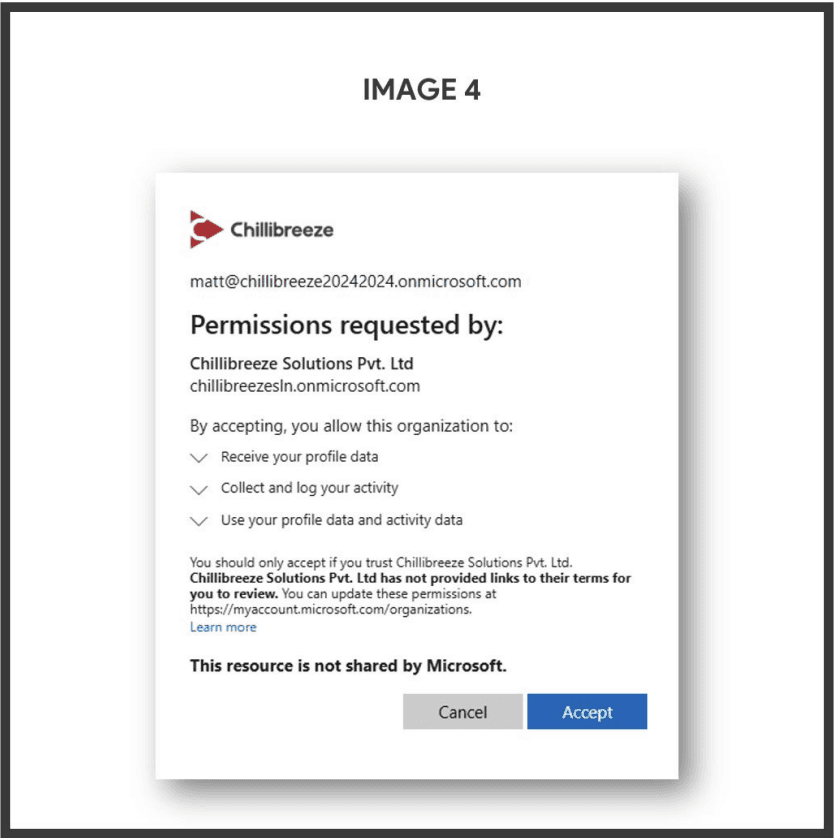
2. Accept Permissions
After entering your credentials, you will be directed to a new page. Click Accept to proceed, as shown in Image 4.
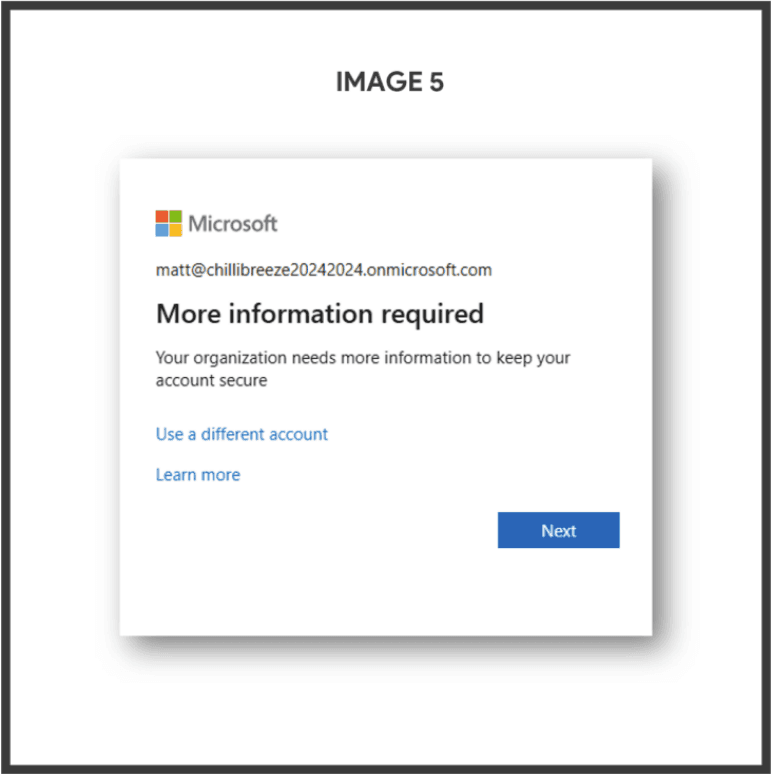
3. More Information Required
You will be prompted with a More Information Required screen. Click Next to continue, as shown in Image 5.
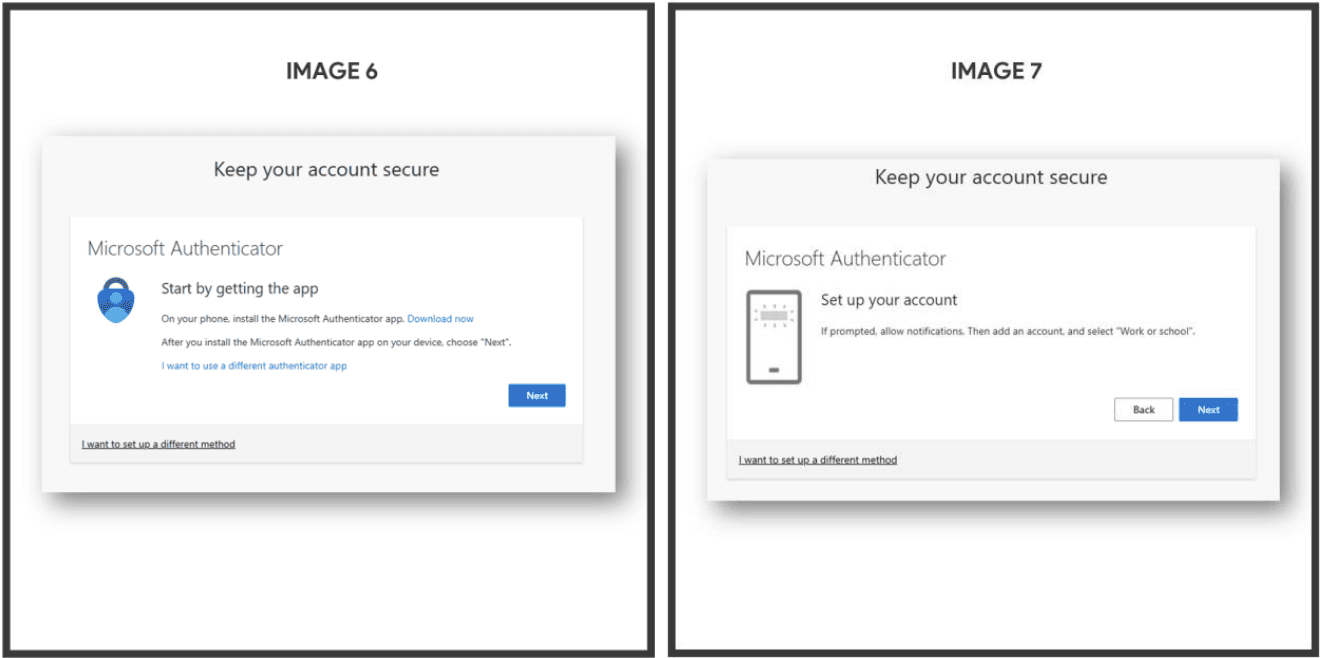
4. Set Up Multi-Factor Authentication (MFA)
You will now be asked to set up MFA. Click Next to proceed. As shown in Image 6 & Image 7.
5. Configure the Microsoft Authenticator App
o Open the Microsoft Authenticator app that you installed earlier.
o In the app, click the “+” sign and select Work or School Account.
o Choose Scan a QR code and then scan the QR code displayed on your computer screen.
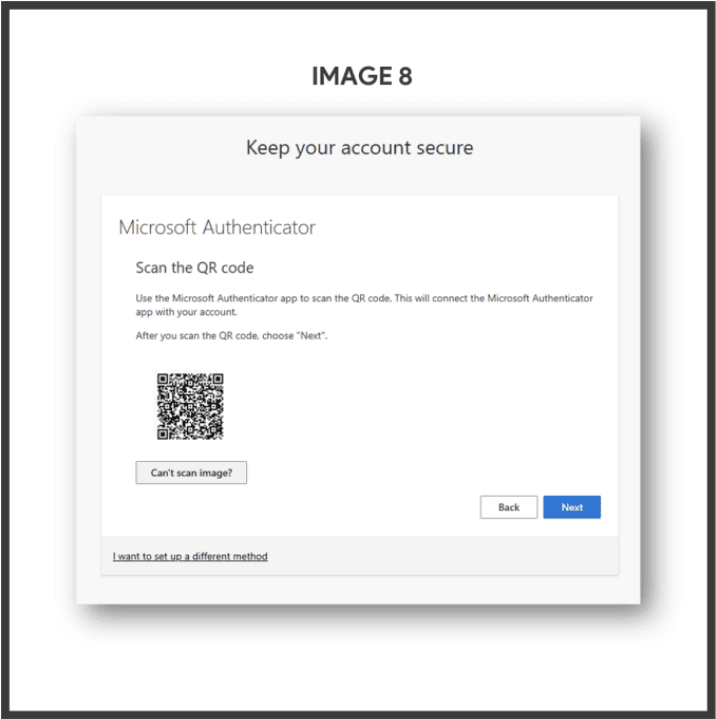
o Enter the code generated by the app into the authentication prompt on your computer.
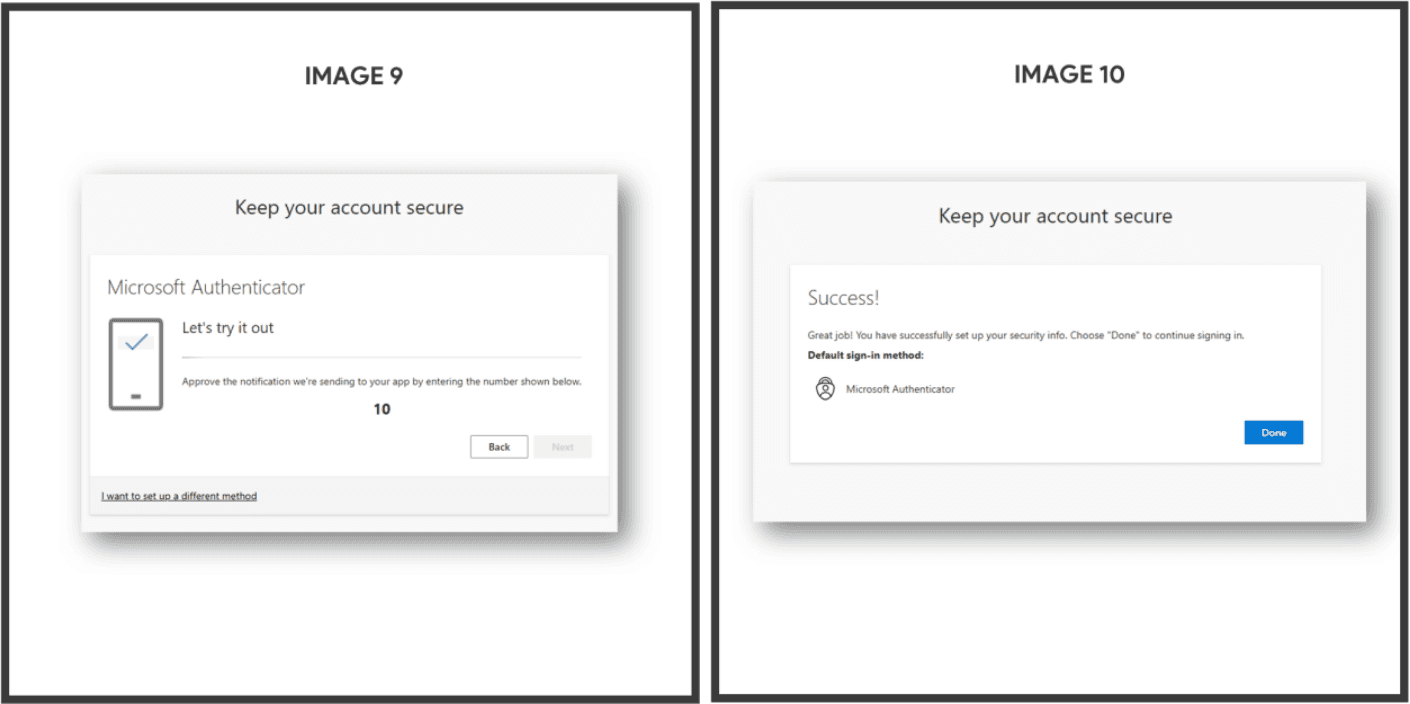
6. Complete Setup
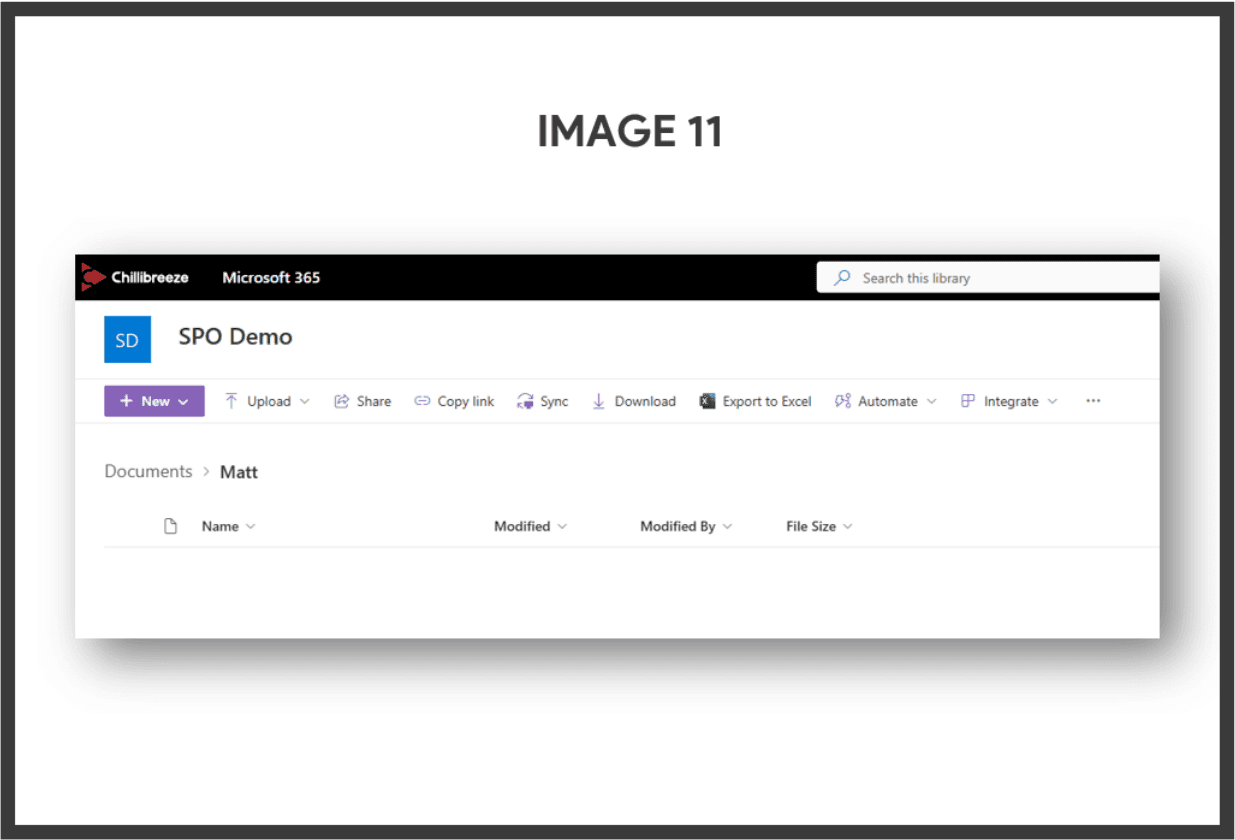
Once the setup is complete, you will see a confirmation screen. Click Done to finalize the process. You will now have access to the shared folder or files.